Introduction
Before you can start using your new Mango Mail address, you’ll want to set up your account with a mail client. In this case we will be using the Canary Mail mobile app, but the same steps can be applied to other mail clients.
Prerequisites
- Create and set up your Mango Mail account.
- Create a new email address through the Mango Dashboard.
- Download and install the Canary Mail mobile app.
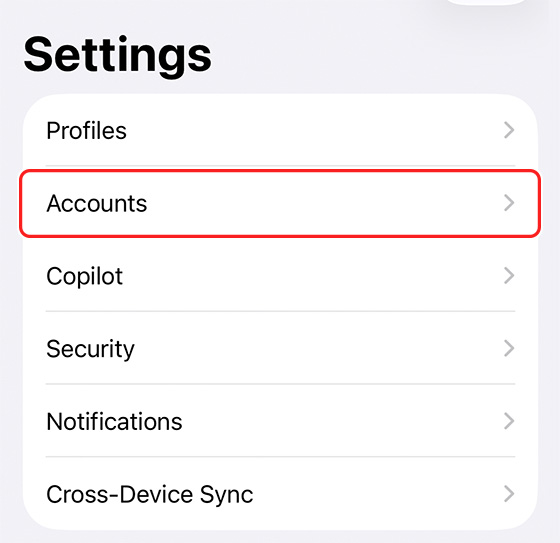
Step 1. Go to Settings within the Canary Mail App and click on "Accounts"
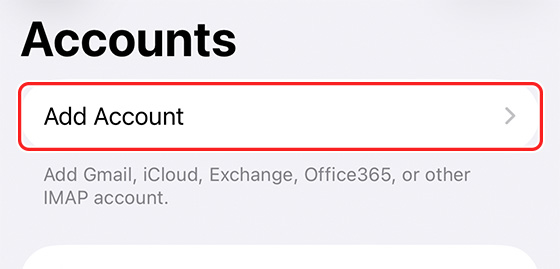
Step 2. Click "Add Account"
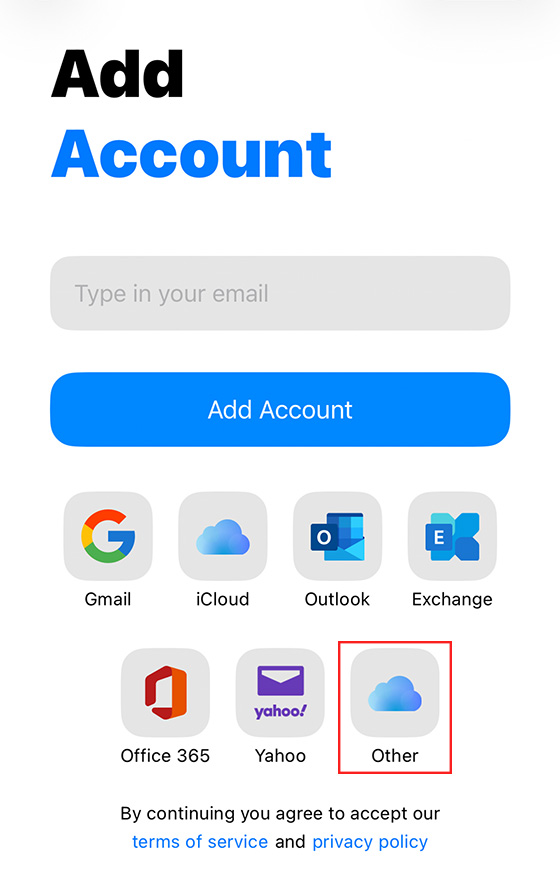
Step 3. Select the type "Other"
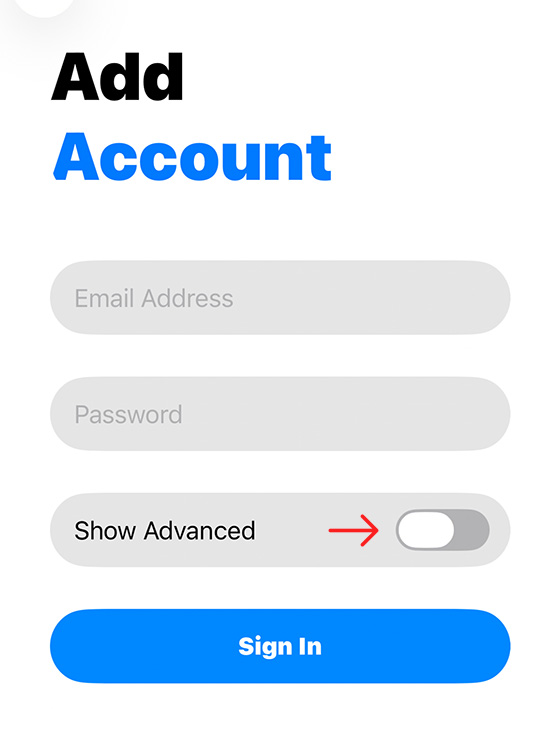
Step 4. Enter your Mango Mail address and password, then toggle "Show Advanced"
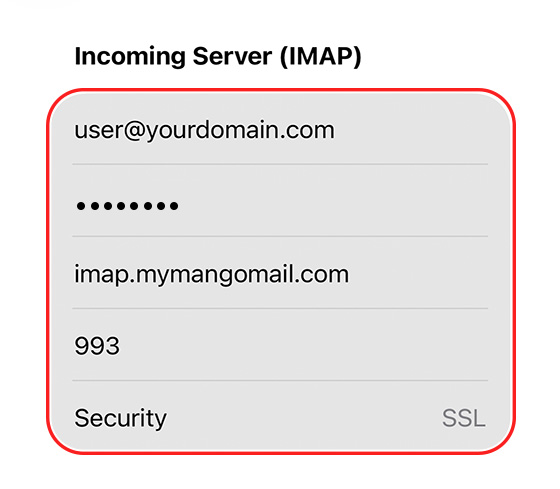
Step 5. Enter the following IMAP settings
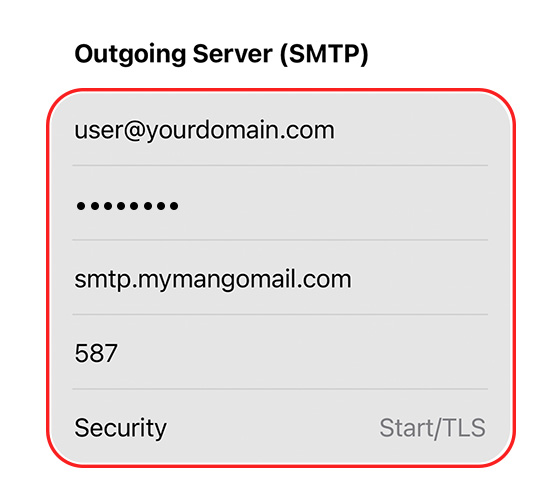
Step 6. Enter the following SMTP settings
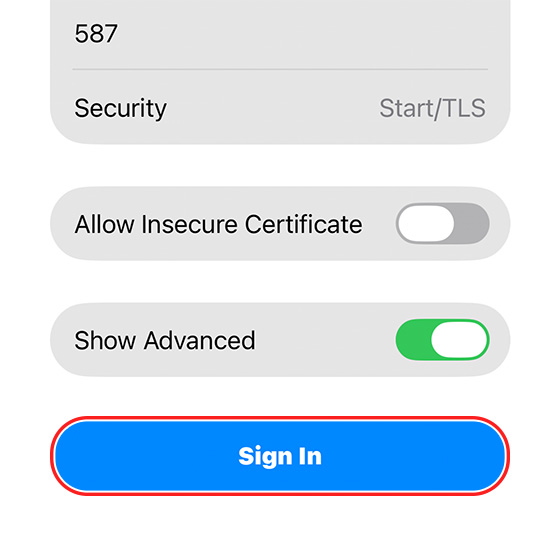
Step 7. Scroll to the bottom and tap "Sign In"
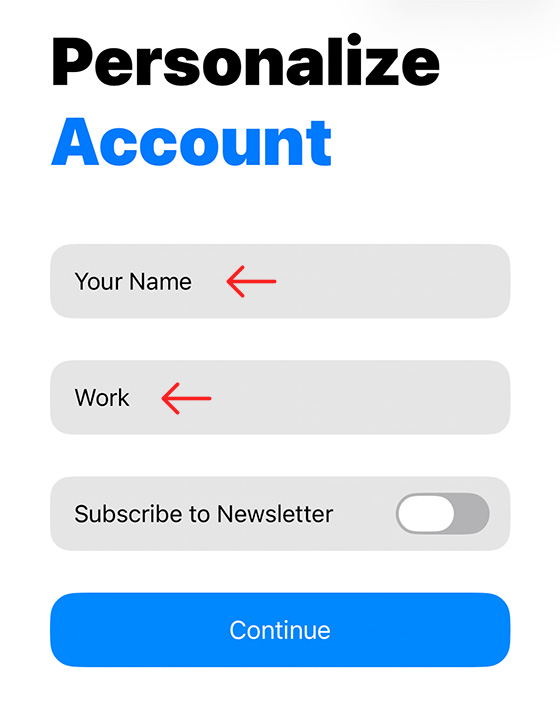
Step 8. Finally, enter your name and a label for the mailbox
Next Steps
Now that you've finished setting up the Canary Mail app, you can start sending emails with your new Mango Mail address. You can also set up your Mango Mail address with Canary Mail on desktop, the Gmail App, or iOS Mail.